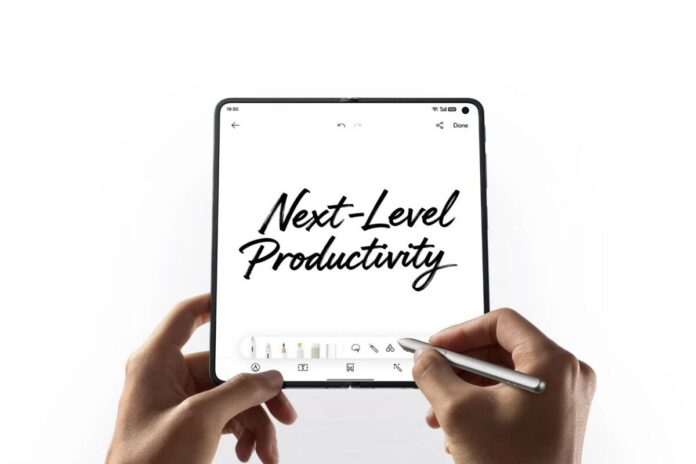

The stylus brings AI Chart and Global Annotation tools to the OPPO Find N6, helping users convert rough notes into editable charts and add feedback directly to documents.
Meetings often end with useful ideas still trapped on a whiteboard, while document reviews can turn into a patchwork of screenshots, messages, and follow-up explanations.
The OPPO AI Pen, designed for use with the OPPO Find N6, closes those gaps with two productivity-focused features: AI Chart, which converts hand-drawn diagrams into cleaner digital charts, and Global Annotation, which lets users write directly on documents and images while keeping feedback in context.
Turn whiteboard notes into editable charts
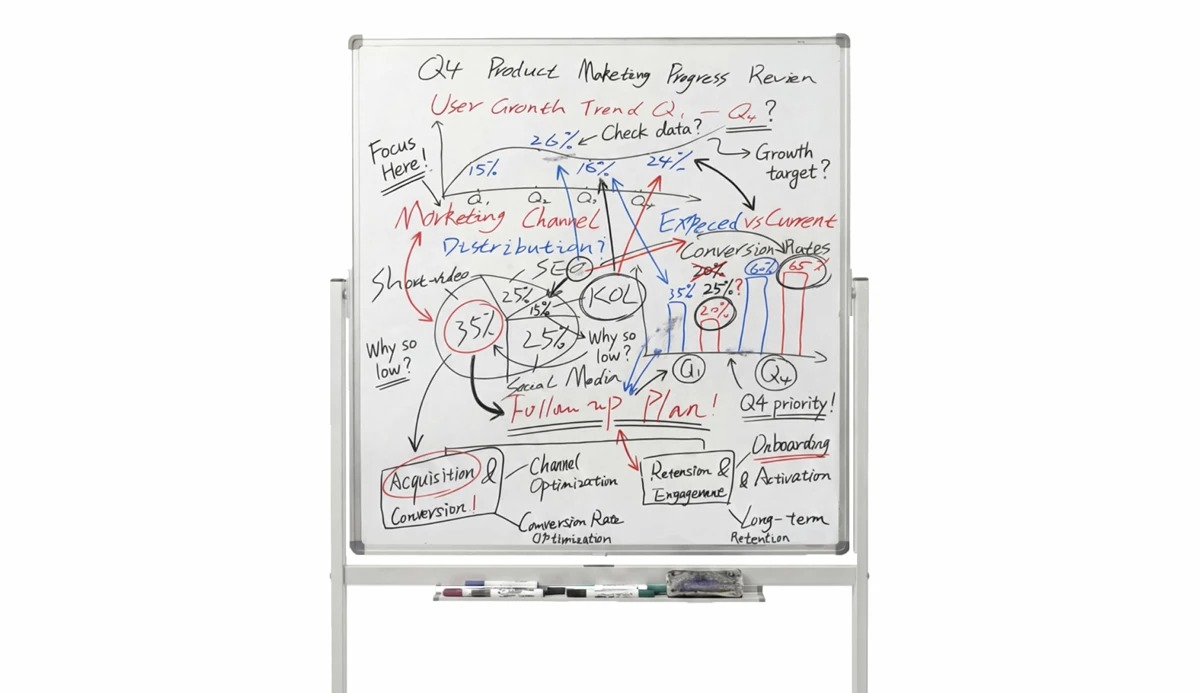
With AI Chart, users can start by taking a photo of a whiteboard or opening an image of handwritten notes.
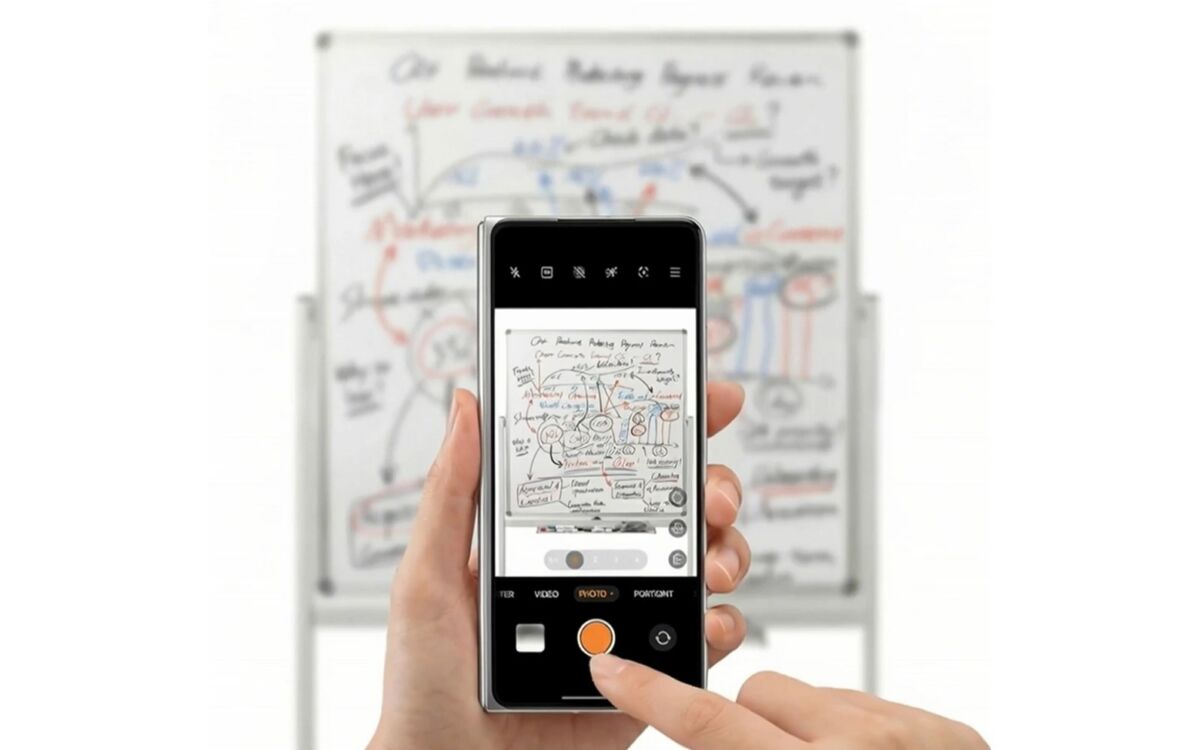
AI Chart can convert a photographed hand-drawn diagram into a cleaner digital chart. 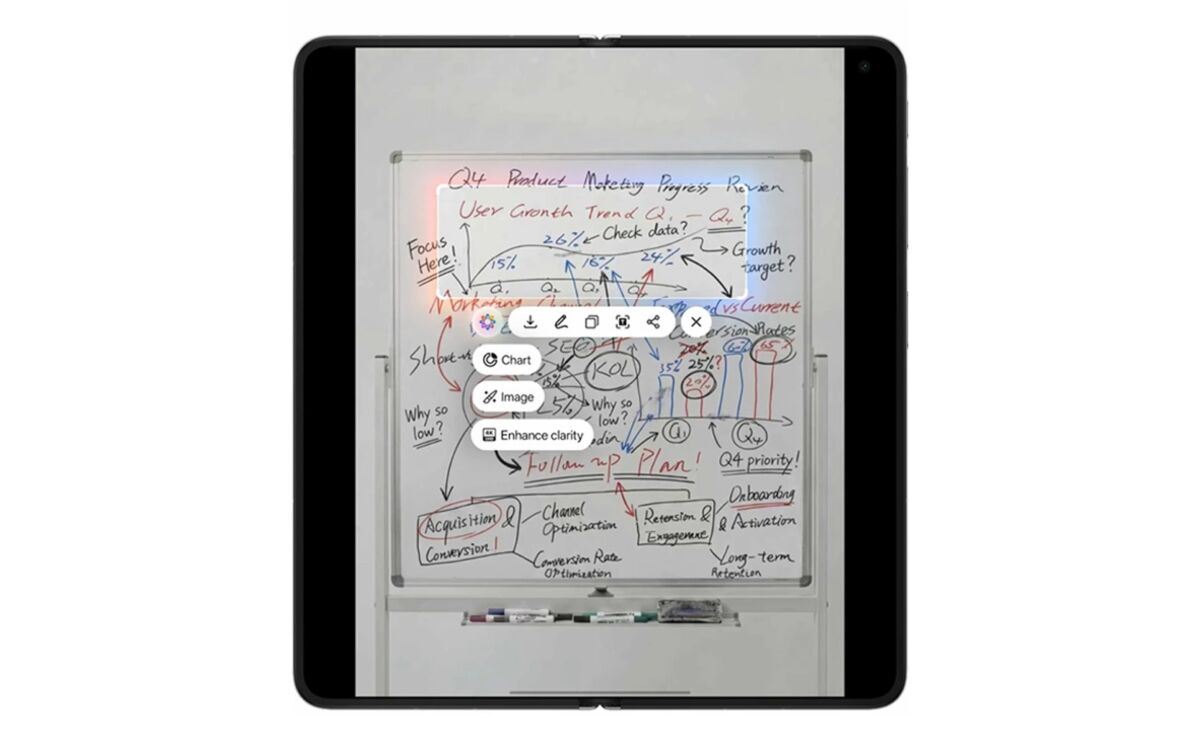
AI Chart can convert a photographed hand-drawn diagram into a cleaner digital chart. 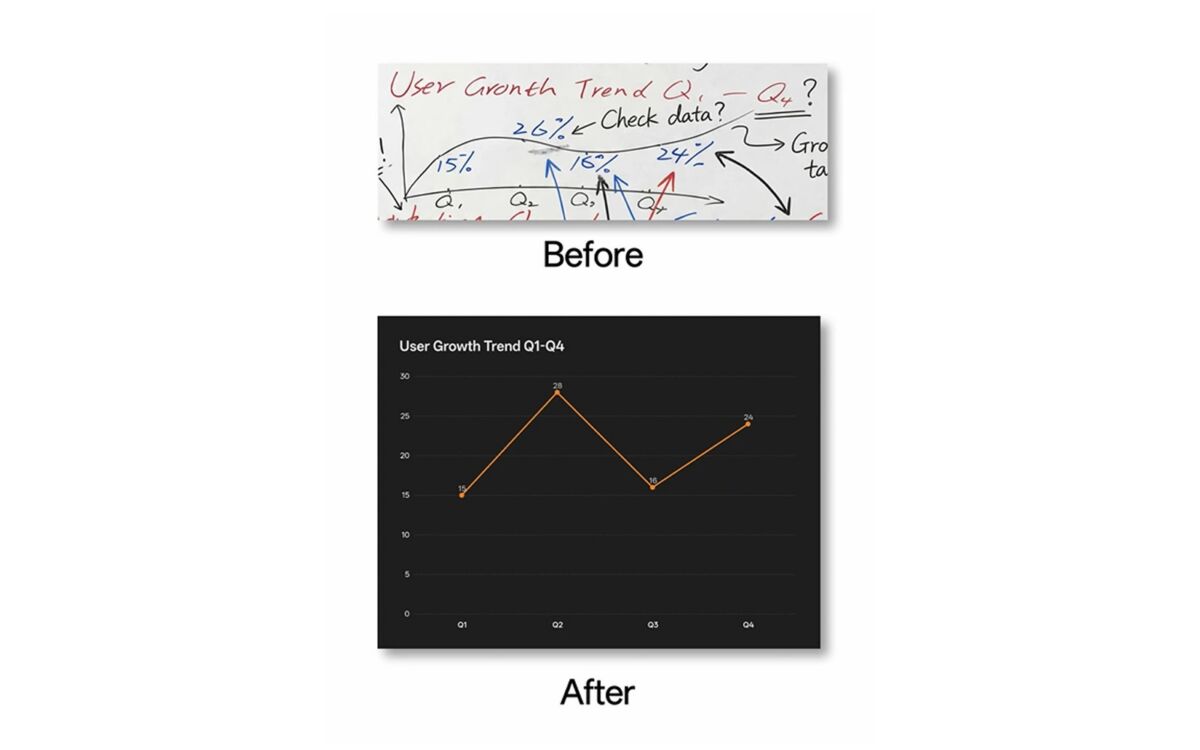
AI Chart can convert a photographed hand-drawn diagram into a cleaner digital chart. 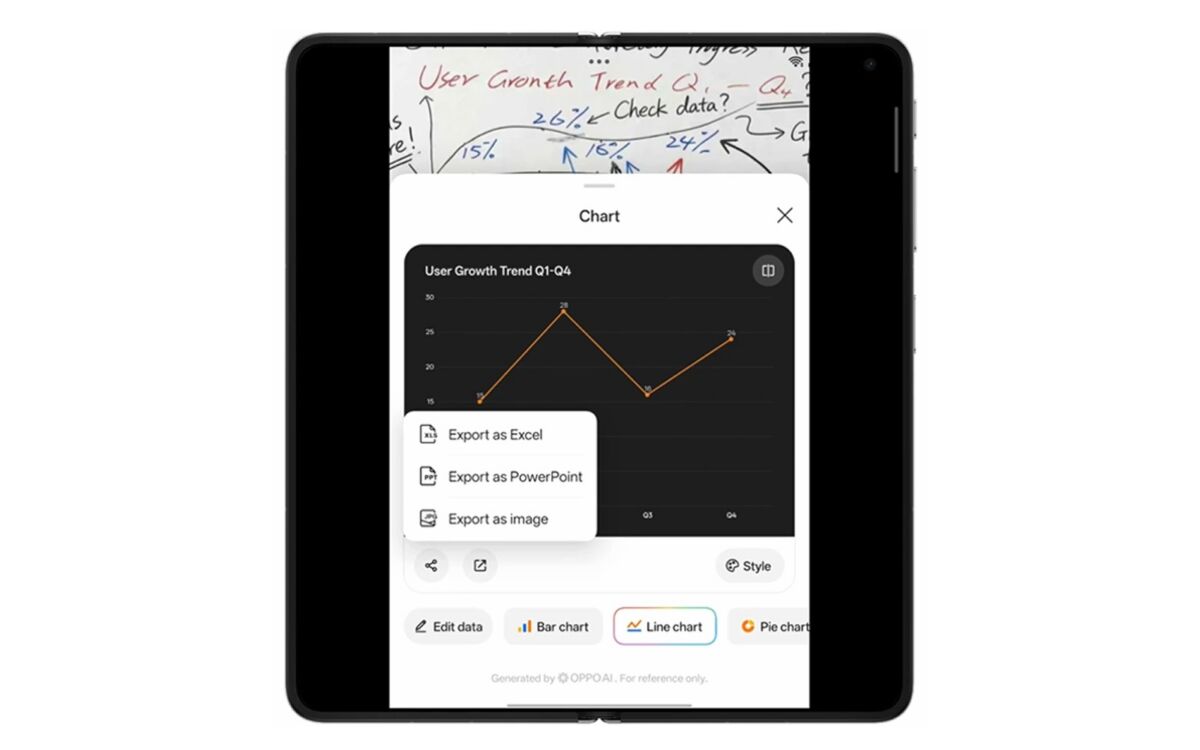
AI Chart can convert a photographed hand-drawn diagram into a cleaner digital chart.
After opening the image, they can press and hold the OPPO AI Pen button, circle the section they want to convert, and activate AI Chart. The system can recognize the structure of rough diagrams even when lines are uneven or spacing is inconsistent.
The selected sketch then transforms into a cleaner wireframe or standard chart format, preserving the original logic while making it easier to read and share.
Users can further edit the text and data, apply different styles or color themes, or revise the chart directly with the AI Pen. That keeps the workflow flexible even after the initial conversion.
Export to common work formats

Once the chart is finalized, you can export it in different file types depending on the chart format.
Supported options include image, PDF, PowerPoint, Excel, and XMind, making it easier to drop the finished chart into meeting notes, presentations, reports, or team files without recreating it from scratch.
That makes AI Chart most useful when a rough visual idea needs to move quickly from a whiteboard or handwritten sketch into something structured enough for the rest of the team to use.
Add feedback directly to documents
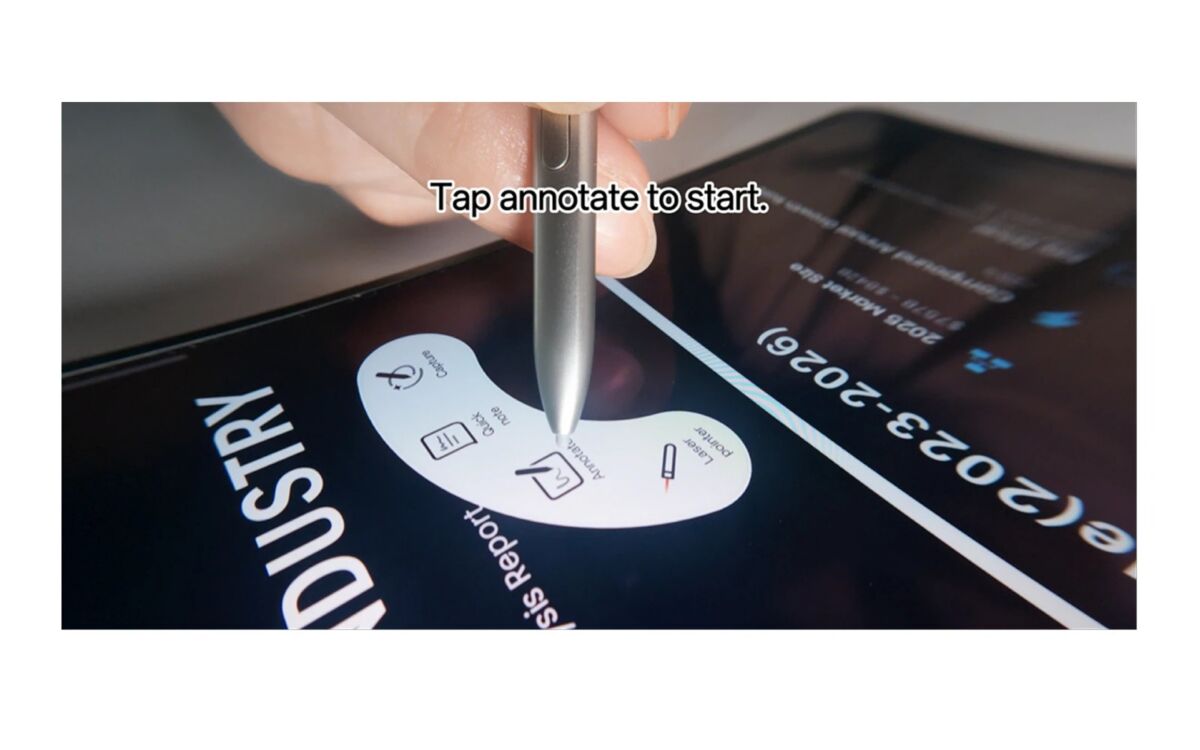
The second workflow centers on Global Annotation, which lets users write directly over documents and images.
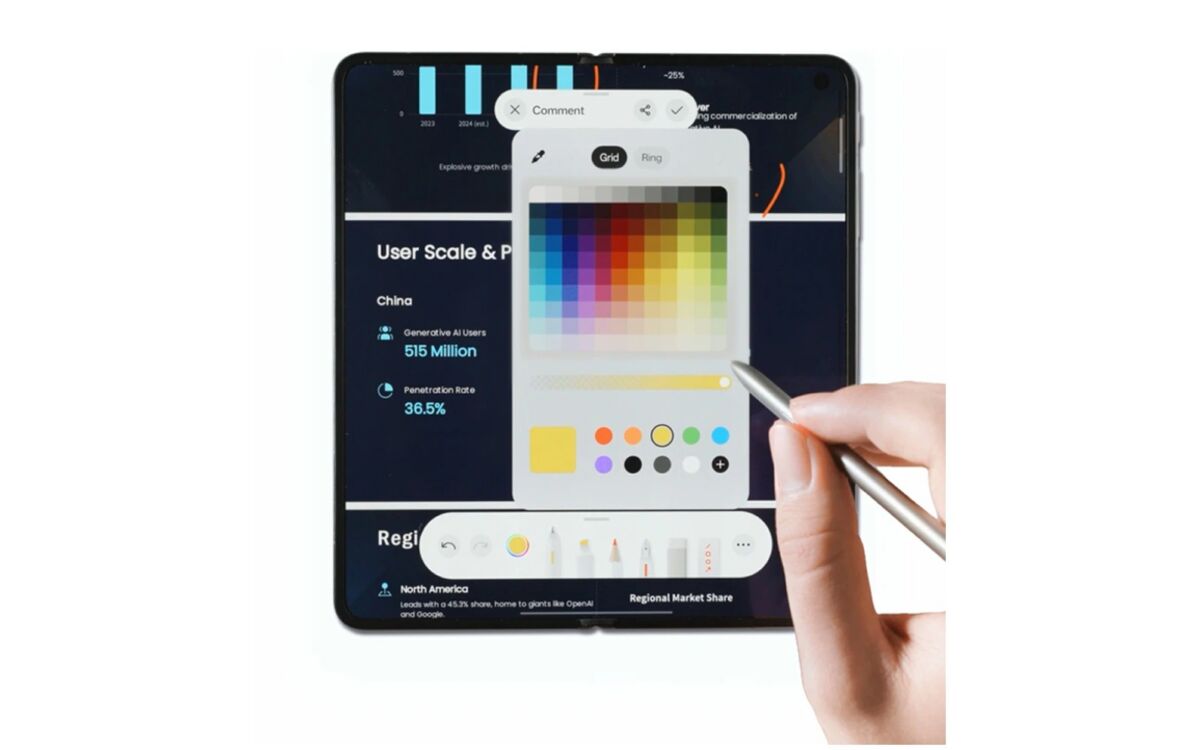
To enter annotation mode, users open the file they want to review, press the OPPO AI Pen button to bring up the Stylus Palette, and select Annotate. The screen then becomes a full-screen handwriting space for notes, circles, highlights, and other markups.
One practical advantage is that annotation continues while users scroll through long pages. This means comments can remain directly beside the content they refer to instead of being split across separate screenshots or chat messages.
Users can also change pen strokes and ink colors to separate corrections, questions, and follow-up points, making longer reviews easier to scan.
Share annotated files without extra screenshots
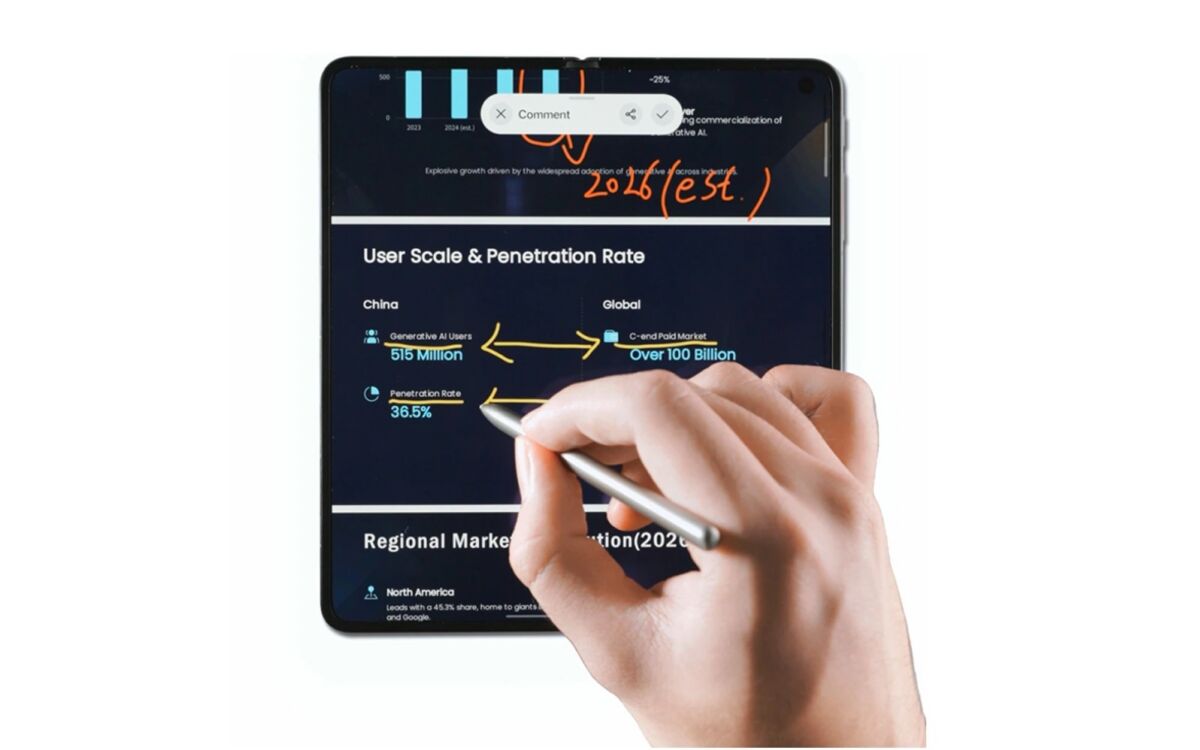
After reviewing a document, users can share annotated work directly as a PDF or JPG.
That keeps the original layout and handwritten feedback together in a single file, reducing the need to send multiple screenshots with separate explanations.
Taken together, AI Chart and Global Annotation give the OPPO AI Pen a practical role beyond ordinary note-taking. One feature helps turn rough ideas into structured visual material, while the other keeps feedback connected to the document being reviewed.
More information is available through the OPPO Philippines website.